Windows MSI apps: Important information about the product GUID
Why is the product GUID important?
The product GUID (globally unique identifier)—or product code, is how a Microsoft Installer (MSI) is identified. Windows MDM needs this GUID to find and query the installation status of the MSI and to uninstall it. If the GUID is incorrect, the inventory will also be incorrect—and devices with KCMDM policies might be marked as non-compliant.
Invalid MSI Product Codes - Note that some applications—e.g., the Firefox MSI, will not show up in the Windows settings application list or uninstall properly even with the correct product GUID. The app will install, but can't be removed remotely and will not show up in managed inventory queries.
Can the product GUID be determined during upload?
In some cases—yes, the product GUID can be determined during upload, but not all MSIs work this way. For example, the SMA Agent can be inspected after upload and the correct GUID and version will be recorded. Other MSIs require the details to be added post upload, and some MSIs—Firefox is one example, won't generate a valid MSI, so the correct product GUID won't work properly.
How can an administrator view an MSI's product GUID?
There are three methods (open line item for downloads and code samples):
MSI Viewer Tool - (Recommended)
Microsoft provides a free Orca tool with the Windows SDK installer. Download at https://developer.microsoft.com/en-gb/windows/downloads/windows-10-sdk.
Installing Orca
Run the installer and select the "Windows SDK for Desktop C++ x86 Apps" option. The other options are not needed to inspect MSIs.

After installation completes, there should be an Orca installer in the Windows Kits path depending upon on the SDK installation path.
In this example, the Orca MSI sits in the "C:\Program Files (x86)\Windows Kits\10\bin\10.0.19041.0\x86" path. Running the MSI should then install Orca in the "C:\Program Files (x86)\Orca\Orca.exe" path.
Running Orca
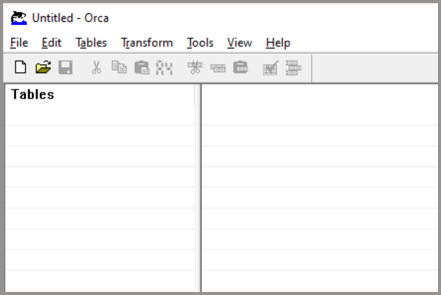
On opening the Orca Tool, a basic app opens with no information.
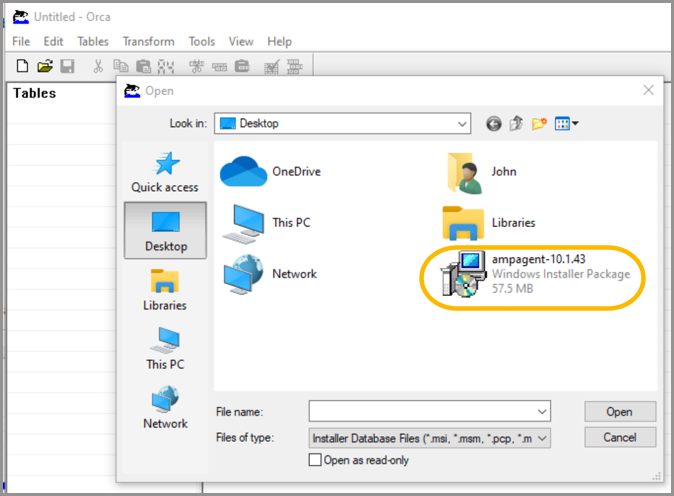
To view an MSI, select File > Open. In the screenshot below, we are opening the SMA agent.
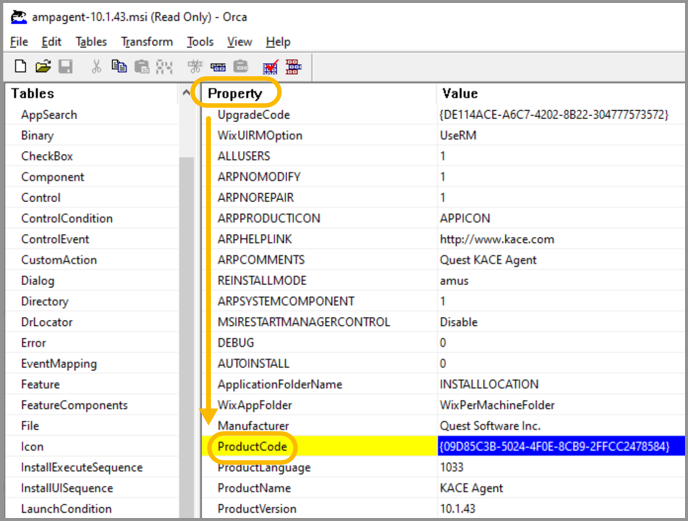
To view the product GUID, click on the "Property" table and then the "ProductCode" field.
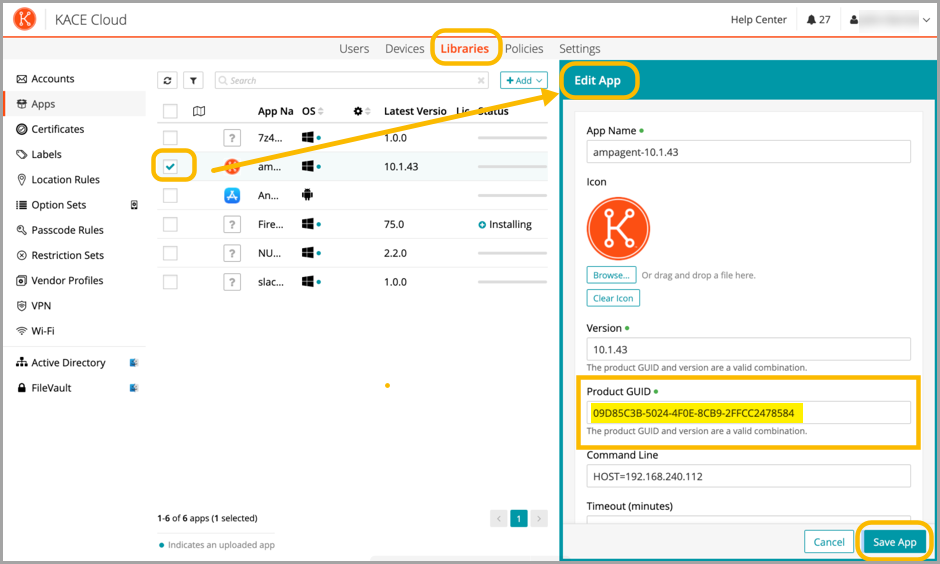
If the product code shown by Orca does not match the version recorded in KACE Cloud, it can be updated. To do this, select the chosen app in the library, click "Edit App Details", paste the value into the "Product GUID" field and click the "Save" button. Note that the curly braces around the GUID will need to be removed.
Custom PowerShell Script - (For advanced PowerShell users)
param(
[parameter(Mandatory=$true)]
[ValidateNotNullOrEmpty()] [System.IO.FileInfo]$Path,
[parameter(Mandatory=$true)]
[ValidateNotNullOrEmpty()]
[ValidateSet("ProductCode", "ProductVersion", "ProductName", "Manufacturer", "ProductLanguage", "FullVersion")]
[string]$Property )
process
{
try
{
# Read property from MSI database
$WindowsInstaller = New-Object -ComObject WindowsInstaller.Installer
$MSIDatabase = $WindowsInstaller.GetType().InvokeMember("OpenDatabase", "InvokeMethod", $null, $WindowsInstaller, @($Path.FullName, 0))
$View = $MSIDatabase.GetType().InvokeMember('OpenView', 'InvokeMethod', $null, $MSIDatabase, ("SELECT Value FROM Property WHERE Property = '$($property)'"))
$View.GetType().InvokeMember("Execute", "InvokeMethod", $null, $View, $null)
$Record = $View.GetType().InvokeMember("Fetch", "InvokeMethod", $null, $View, $null)
$Value = $Record.GetType().InvokeMember("StringData", "GetProperty", $null, $Record, 1)
# Commit database and close view
$MSIDatabase.GetType().InvokeMember("Commit", "InvokeMethod", $null, $MSIDatabase, $null)
$View.GetType().InvokeMember("Close", "InvokeMethod", $null, $View, $null)
$MSIDatabase = $null
$View = $null
# Return the value
return $Value
}
catch
{
Write-Warning -Message $_.Exception.Message ; break
}
}
end
{
# Run garbage collection and release
[System.Runtime.Interopservices.Marshal]::ReleaseComObject($windowsInstaller) | Out-Null
[System.GC]::Collect()
}
To run this script, open the PowerShell ISE on a Windows device and run it as an administrator.
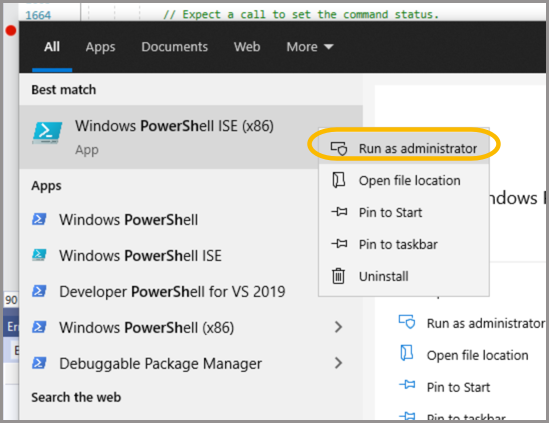
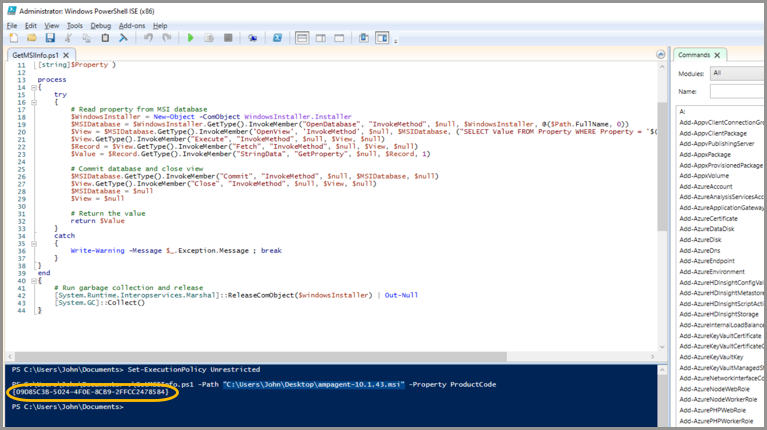
Once opened, paste the script into the PowerShell ISE and save it. In the screenshot below, the script is named "GetMSIInfo.ps1".
Next set the system execution policy to run unsigned scripts. To do that, run the following command.
Set-ExecutionPolicy Unrestricted
There will be a pop up warning about this. The execution policy can be changed back afterwards.
Next, run the following command to get an MSI's product GUID. Note that we are using the SMA agent again and the path will need to be changed to point to another MSI.
.\GetMSIInfo.ps1 -Path "C:\Users\John\Desktop\ampagent-10.1.43.msi" -Property ProductCode
This should display the product GUID that can then be pasted into the app details screen as mentioned previously. Again, the curly braces around the value will need to be removed.
Custom Visual Basic Script - (For advanced Visual Basic Script users)
A Visual Basic Script file can be used to get an MSI's product GUID. The following script works with the SMA agent MSI. Note that the path is set in the script.
On Error Resume Next
msi = "C:\Users\John\Desktop\ampagent-10.1.43.msi"
Dim FS, TS, WI, DB, View, Rec
Set WI = CreateObject("WindowsInstaller.Installer")
Set DB = WI.OpenDatabase(msi,0)
Set View = DB.OpenView("Select `Value` From Property WHERE `Property` ='ProductCode'")
View.Execute
Set Rec = View.Fetch
If Not Rec Is Nothing Then
MsgBox Rec.StringData(1), 0, "MSI Product GUID" End If
Saving this file on a Windows desktop and running it with a valid MSI path should produce the following output:
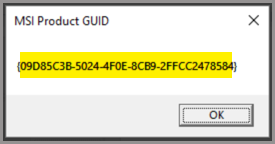
The GUID in the modal window can be copied and pasted into the edit app details screen. Note that the curly braces around the GUID will need to be removed.